Device Credentials
Goal: Access device connection credentials and understand connection status.
Connection Info Tab
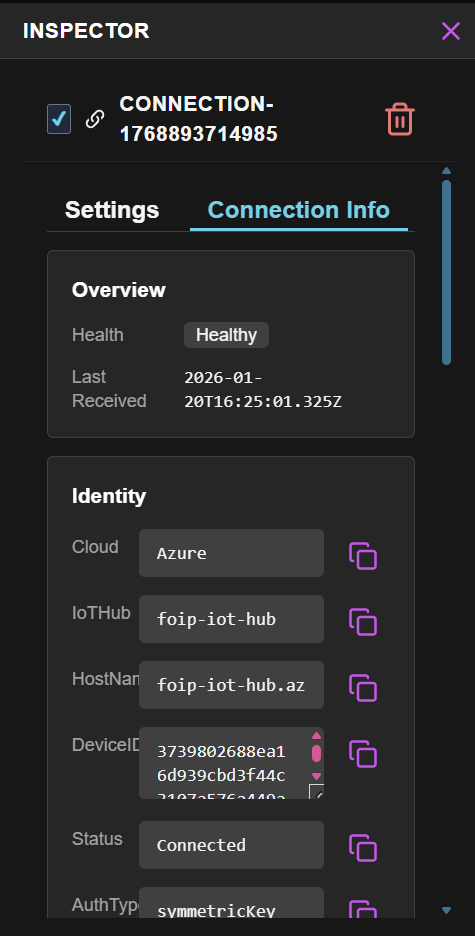
Select your connection node and open Inspector → Connection Info to access all device information.
Overview Section
Real-time health monitoring for your connection:
| Field | Description |
|---|---|
| Health | Current connection health status |
| Last Received | Timestamp of the most recent telemetry message |
Health states:
- Healthy - Device is communicating normally
- Degraded - Intermittent communication issues
- Unhealthy - No recent communication
Identity Section
Device identification and IoT Hub details:
| Field | Description |
|---|---|
| Cloud | Cloud provider (Azure) |
| IoTHub | Managed IoT Hub instance name |
| HostName | Full IoT Hub hostname (e.g., foip-iot-hub.azure-devices.net) |
| DeviceID | Unique identifier for this device |
| Status | Connection state (Connected, Disconnected) |
| AuthType | Authentication method (symmetricKey) |
Device Access Section
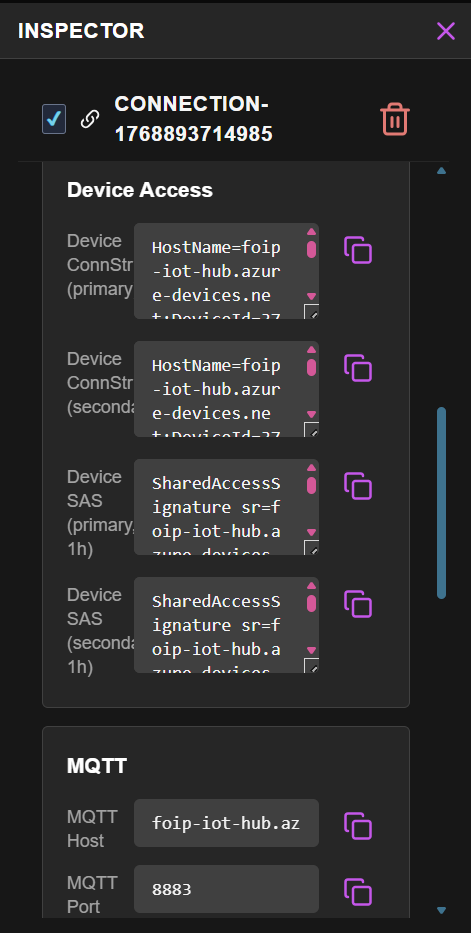
Expand the Device Access section to reveal connection credentials:
Connection Strings
| Credential | Description |
|---|---|
| Device ConnStr (primary) | Primary connection string for SDK-based connections |
| Device ConnStr (secondary) | Secondary connection string for key rotation |
Use connection strings with Azure IoT SDKs:
// Node.js example
import { Client } from 'azure-iot-device';
import { Mqtt } from 'azure-iot-device-mqtt';

const connectionString = 'HostName=...;DeviceId=...;SharedAccessKey=...';
const client = Client.fromConnectionString(connectionString, Mqtt);
SAS Tokens
| Token | Description |
|---|---|
| Device SAS (primary, 1h) | Primary SAS token with 1-hour expiration |
| Device SAS (secondary, 1h) | Secondary SAS token with 1-hour expiration |
SAS tokens expire after 1 hour. For production devices, use connection strings with SDKs that handle token refresh automatically.
MQTT Details
For devices connecting via raw MQTT protocol:
| Setting | Description |
|---|---|
| MQTT Host | IoT Hub hostname for MQTT connections |
| MQTT Port | 8883 (TLS required) |
IoT Edge Devices
For Azure IoT Edge deployments:
- Open Inspector → Settings tab
- Enable Is IoT Edge Device
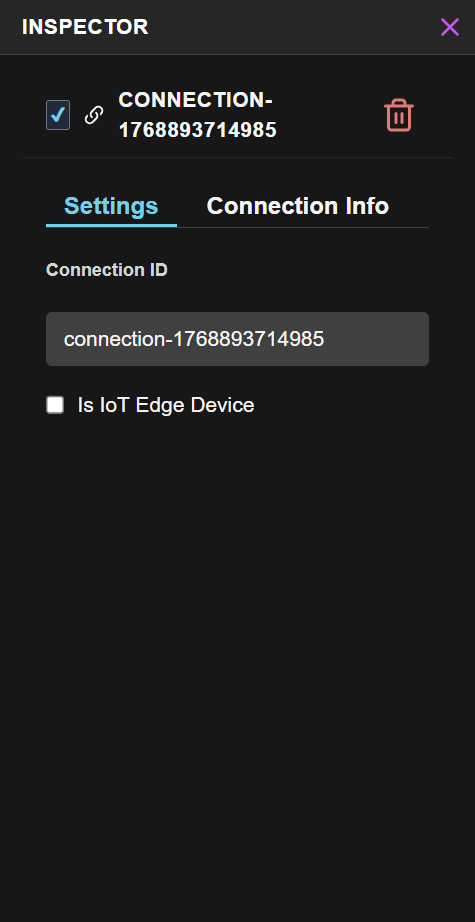
This configures the connection for Edge module communication patterns.
Security Best Practices
Treat credentials like passwords. Never expose them in logs, client-side code, or version control.
- Rotate regularly - Use the secondary connection string during rotation
- Store securely - Use secure storage on devices, never hardcode
- Monitor status - Watch for unexpected disconnections
- Regenerate if compromised - Contact support to regenerate device credentials
Device Management (Coming Soon)
Full device lifecycle management is coming soon. This will include:
- Adding new devices
- Editing device configuration
- Removing devices
- Bulk device operations
- Device health monitoring
For now, devices are automatically provisioned when connections are created.
Troubleshooting
| Issue | Solution |
|---|---|
| Can't find Device Access | Ensure connection node is selected, check Connection Info tab |
| Connection string not working | Verify you copied the complete string including SharedAccessKey |
| SAS token rejected | Token may be expired - generate a new one |
| MQTT connection fails | Ensure port 8883 is open and TLS is enabled |
Next Steps
| If you want to... | Go to... |
|---|---|
| Understand connection creation | IoT Hub Guide → |
| Route device data | Surfaces Guide → |
| Test with simulated data | Simulator Guide → |