IoT Hub Connection
Goal: Connect production devices using OpenIndustrial's managed IoT Hub.
How It Works
OpenIndustrial provides managed IoT infrastructure:
| What You Get | What You Don't Need |
|---|---|
| Device connection strings | Azure subscription |
| SAS tokens for authentication | IoT Hub provisioning |
| MQTT connection details | Infrastructure management |
| Automatic device registration | Manual Azure configuration |
This is infrastructure-as-a-service for IoT. You focus on your devices and data - we handle the cloud infrastructure.
Creating a Connection
Option A: Using the Canvas
- Drag Connection node onto workspace canvas
- Name it (e.g., "factory-sensors")
- Open the Inspector panel
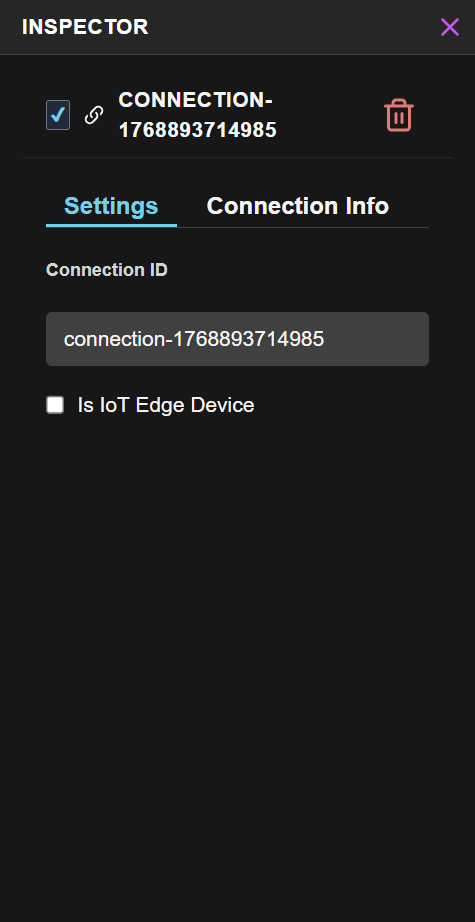
Option B: Ask Azi
Connection Info Tab
After creating a connection, select it and open the Inspector → Connection Info tab to access all device information.
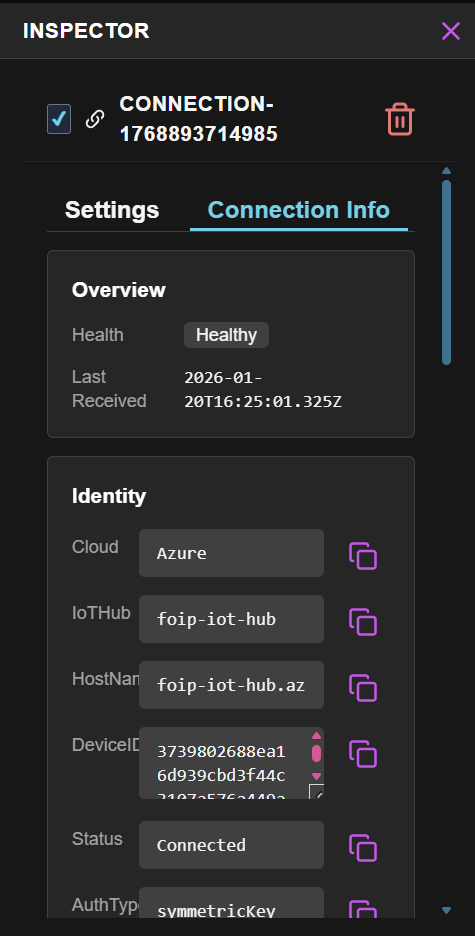
Overview
Real-time health monitoring for your connection:
| Field | Description |
|---|---|
| Health | Current connection health (Healthy, Degraded, Unhealthy) |
| Last Received | Timestamp of the most recent telemetry message |
Identity
Device identification and IoT Hub details:
| Field | Description |
|---|---|
| Cloud | Cloud provider (Azure) |
| IoTHub | Managed IoT Hub name |
| HostName | Full IoT Hub hostname for connections |
| DeviceID | Unique device identifier |
| Status | Connection state (Connected, Disconnected) |
| AuthType | Authentication method (symmetricKey) |
Device Access
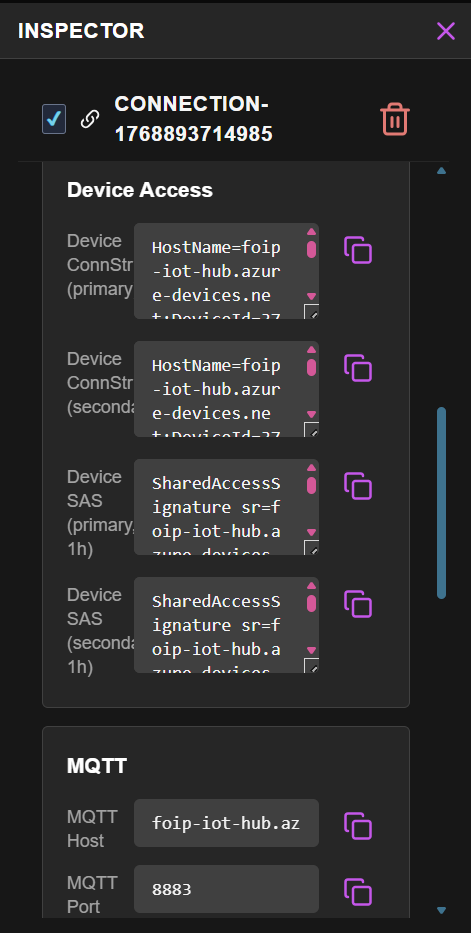
Expand the Device Access section to reveal connection credentials:
| Credential | Description |
|---|---|
| Device ConnStr (primary) | Primary connection string for SDK-based connections |
| Device ConnStr (secondary) | Secondary connection string for key rotation |
| Device SAS (primary, 1h) | Primary SAS token with 1-hour expiration |
| Device SAS (secondary, 1h) | Secondary SAS token with 1-hour expiration |
| MQTT Host | IoT Hub hostname for MQTT connections |
| MQTT Port | MQTT port (8883 with TLS) |
Configuring Physical Devices
Use the credentials from the Inspector to configure your devices.
Connection String Method
Most Azure IoT SDKs accept a connection string:
HostName=<iot-hub>.azure-devices.net;DeviceId=<device-id>;SharedAccessKey=<key>
Copy the full connection string from Device Access → Device ConnStr.
MQTT Direct
For devices using MQTT directly:
| Setting | Value |
|---|---|
| Host | From Device Access → MQTT Host |
| Port | 8883 (TLS required) |
| Client ID | From Device Access → MQTT ClientId |
| Username | {iothub-host}/{device-id}/?api-version=2021-04-12 |
| Password | SAS token from Device Access |
SAS tokens expire. For long-running devices, use the connection string with an SDK that handles token refresh automatically.
Supported Protocols
| Protocol | Port | Use Case |
|---|---|---|
| MQTT | 8883 | Most devices, lowest overhead |
| AMQP | 5671 | Enterprise messaging |
| HTTPS | 443 | Firewall-friendly, higher latency |
Verifying Data Flow
Once your device is configured:
- Power on the device
- Select the connection node in the canvas
- Open Inspector → check for incoming impulses
- The status should show "Connected"
No data after 30 seconds? Verify your device is using the correct connection string and can reach the IoT Hub endpoint.
Security Best Practices
Treat connection strings like passwords. Never commit them to source control or expose them in client-side code.
- Store credentials securely on devices
- Use the secondary connection string for key rotation
- Monitor connection status in the Inspector
- Regenerate credentials if compromised
Enterprise: Custom IoT Hub
Need dedicated infrastructure? OpenIndustrial supports custom-deployed IoT Hub for enterprise customers.
Contact Fathym for:
- Dedicated IoT Hub instances
- Custom scaling requirements
- Compliance-specific deployments
- VNet integration
Next Steps
| If you want to... | Go to... |
|---|---|
| Access more device details | Device Credentials → |
| Route data to queries | Surfaces Guide → |
| Test with simulated data | Simulator Guide → |
On this page
- FrontmatterVersion: 1 DocumentType: Guide Title: "IoT Hub" Summary: "Connect production devices through the managed IoT Hub: create a connection, collect device credentials, and send telemetry over MQTT or HTTPS." Created: 2026-01-18
- IoT Hub Connection