Navigation & Orientation
Goal: Find your way around the Control Plane.
The Hierarchy
Organization
└── Workspace (your main environment)
    └── Connections (data sources)
    └── Surfaces (logical groupings)
        └── Nodes (data endpoints)
            └── Warm Queries (data transformations)
Main Navigation
| Area | Location | Purpose |
|---|---|---|
| Workspace selector | Top left (breadcrumb) | Switch between workspaces |
| Node Bank | Left edge | Drag nodes onto canvas |
| Canvas | Center | Visual workspace with nodes and edges |
| Inspector | Right panel | View and edit node details |
| Azi panel | Left side | Chat with AI assistant |
| AppFrameBar | Top | APIs, Billing, Proposals, Deploy |
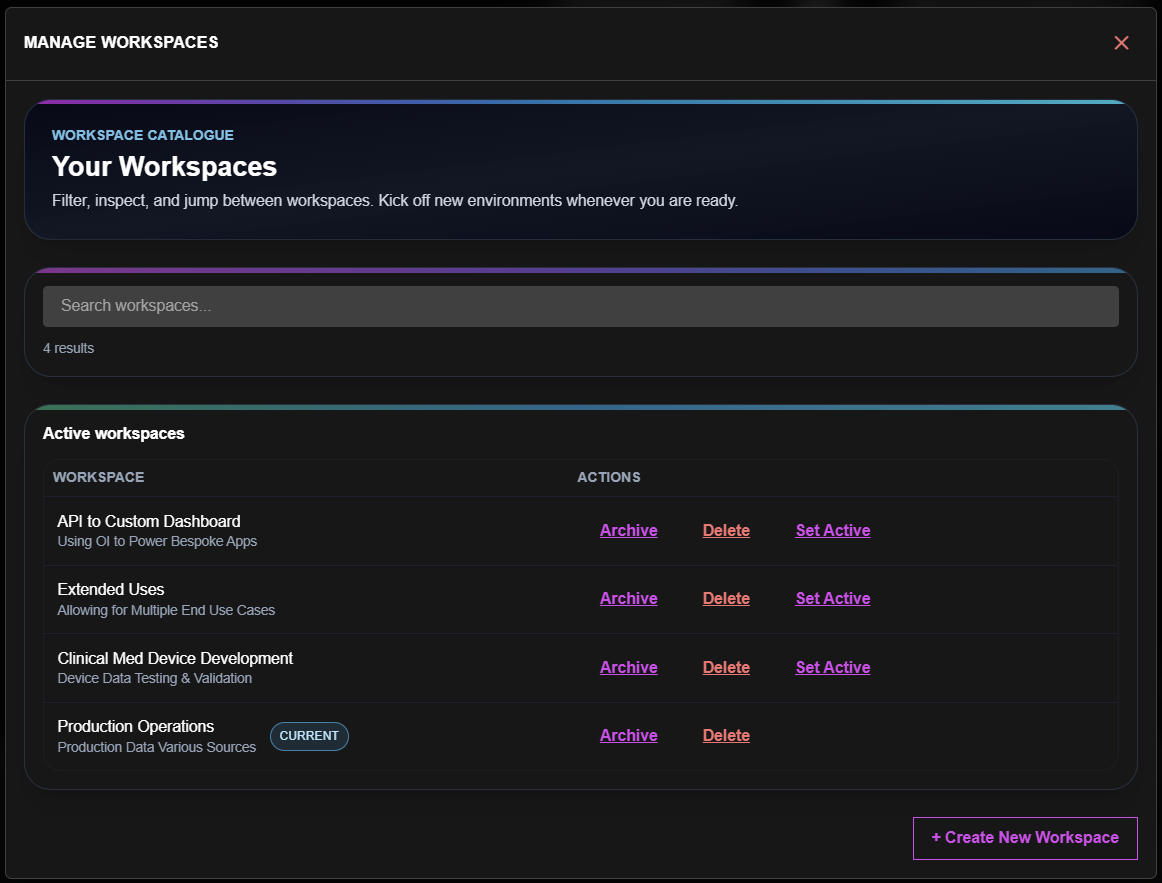
Workspace Selector
Click the workspace name (top left) to:
- Switch to a different workspace
- See workspace details
- Access workspace settings
Thinking Tip:
Each workspace is independent. Connections, surfaces, and queries are scoped to the workspace.
AppFrameBar Items
| Menu Item | What It Does |
|---|---|
| APIs | Access API Keys, Data API Suite, Warm Query Manager |
| Billing | Manage workspace subscription |
| Proposals | Review pending Azi proposals |
| Deploy | Deploy committed changes to production |
Working with Surfaces
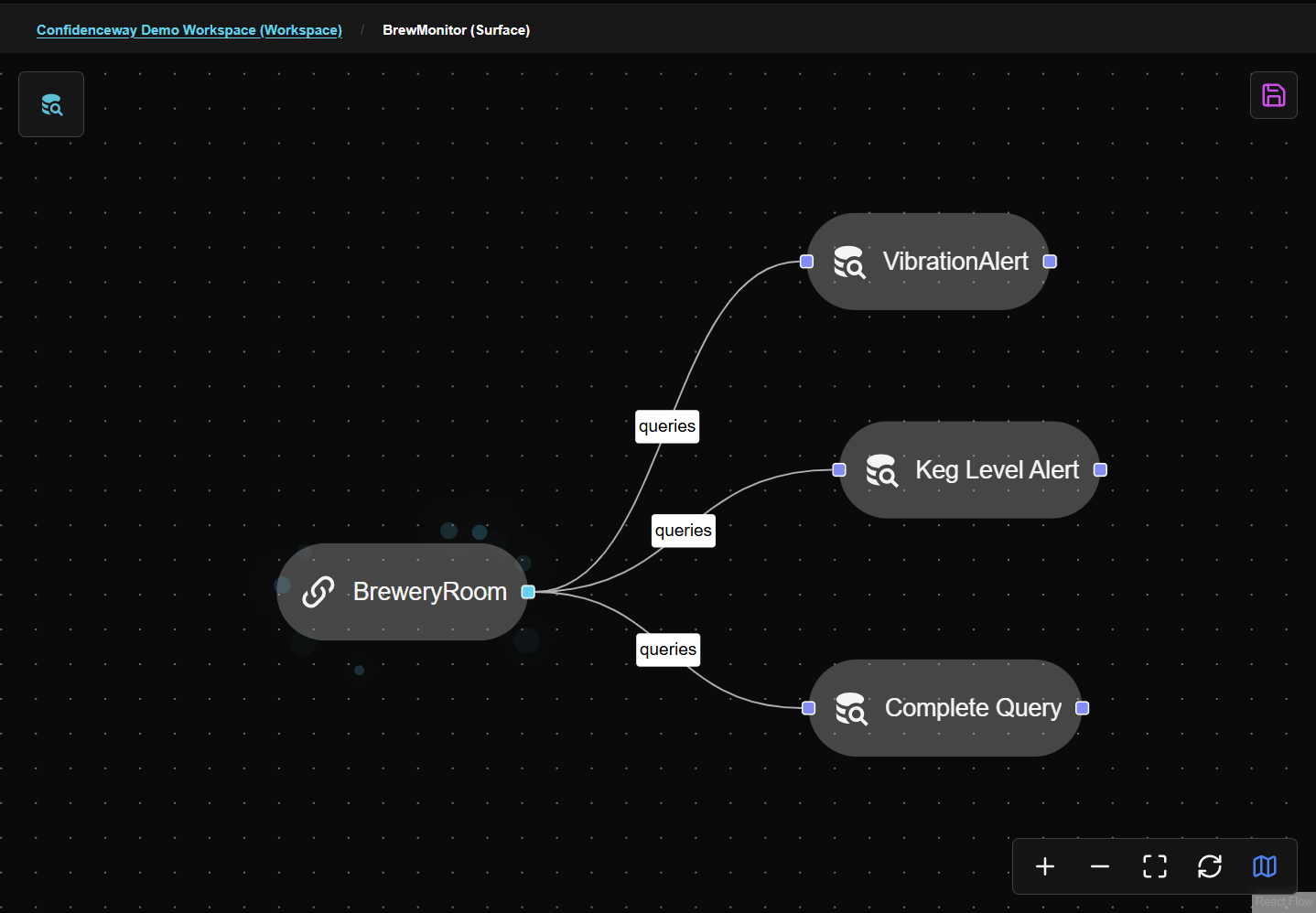
- Surfaces appear as nodes on the canvas
- Click a surface node to select it and open Inspector
- Click the Manage Surface icon in the Inspector to enter the surface
- Inside the surface, you'll see connected nodes and warm queries
- Use the breadcrumb to navigate back to the workspace level
The Inspector
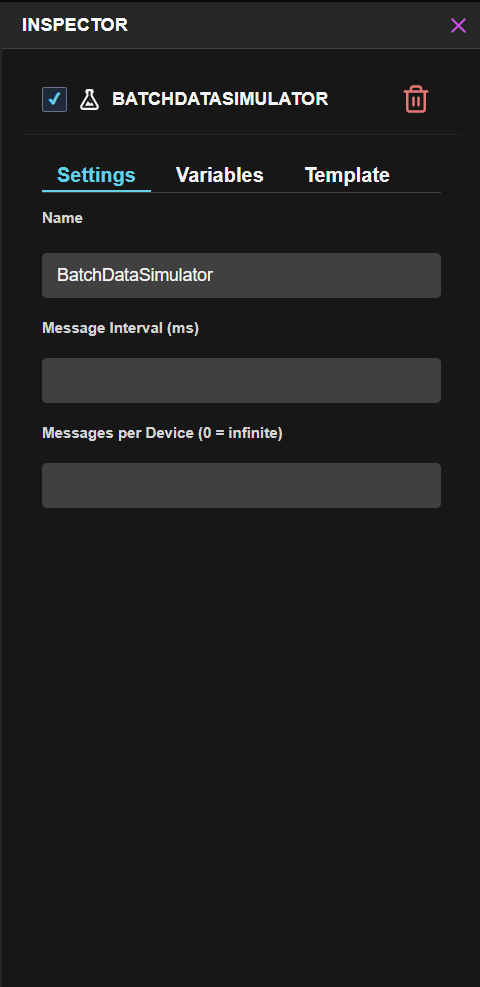
When you select any resource, the Inspector shows:
| Section | Content |
|---|---|
| Overview | Name, type, status |
| Properties | Configuration details |
| Data | Live or sample data |
| Queries | Associated warm queries |
| History | Recent changes |
Keyboard Shortcuts
| Shortcut | Action |
|---|---|
Ctrl+S | Save current work |
Ctrl+K | Open command palette |
Escape | Close panel/dialog |
/ | Focus Azi chat |
Quick Navigation with Azi
Finding Things
Search
- Press
Ctrl+Kor click search icon - Type what you're looking for
- Results show surfaces, nodes, queries
- Click to navigate
Filter by Type
In any list view:
- Click the filter icon
- Select type (Surface, Node, Query)
- List updates to show only that type
Breadcrumbs
At the top of the content area, breadcrumbs show your location:
Workspace > Surface > Node > Warm Query
Click any breadcrumb to jump to that level.
You're never lost. Breadcrumbs, search, and Azi all help you navigate. Ask if you can't find something.
Next Steps
| If you want to... | Go to... |
|---|---|
| Create a surface | Surfaces → |
| Connect data | Connecting Data → |
| Understand save/commit | Save vs Commit → |