Step 4: Build Query with Azi
Goal: Create a Warm Query and build it with Azi in one governed conversation.
What is a Warm Query?
A Warm Query is the heart of the Control Plane:
- Named, saved queries against your data
- Each becomes an API endpoint automatically
- Queries are governed - Azi proposes, you approve
- Full audit trail of query creation and changes
The query doesn't run constantly. It runs when called - "warm" and ready.
Every query you build here will be accessible via API and MCP. That's the foundation for "Bring Any AI" - any MCP-native AI can query your governed data.
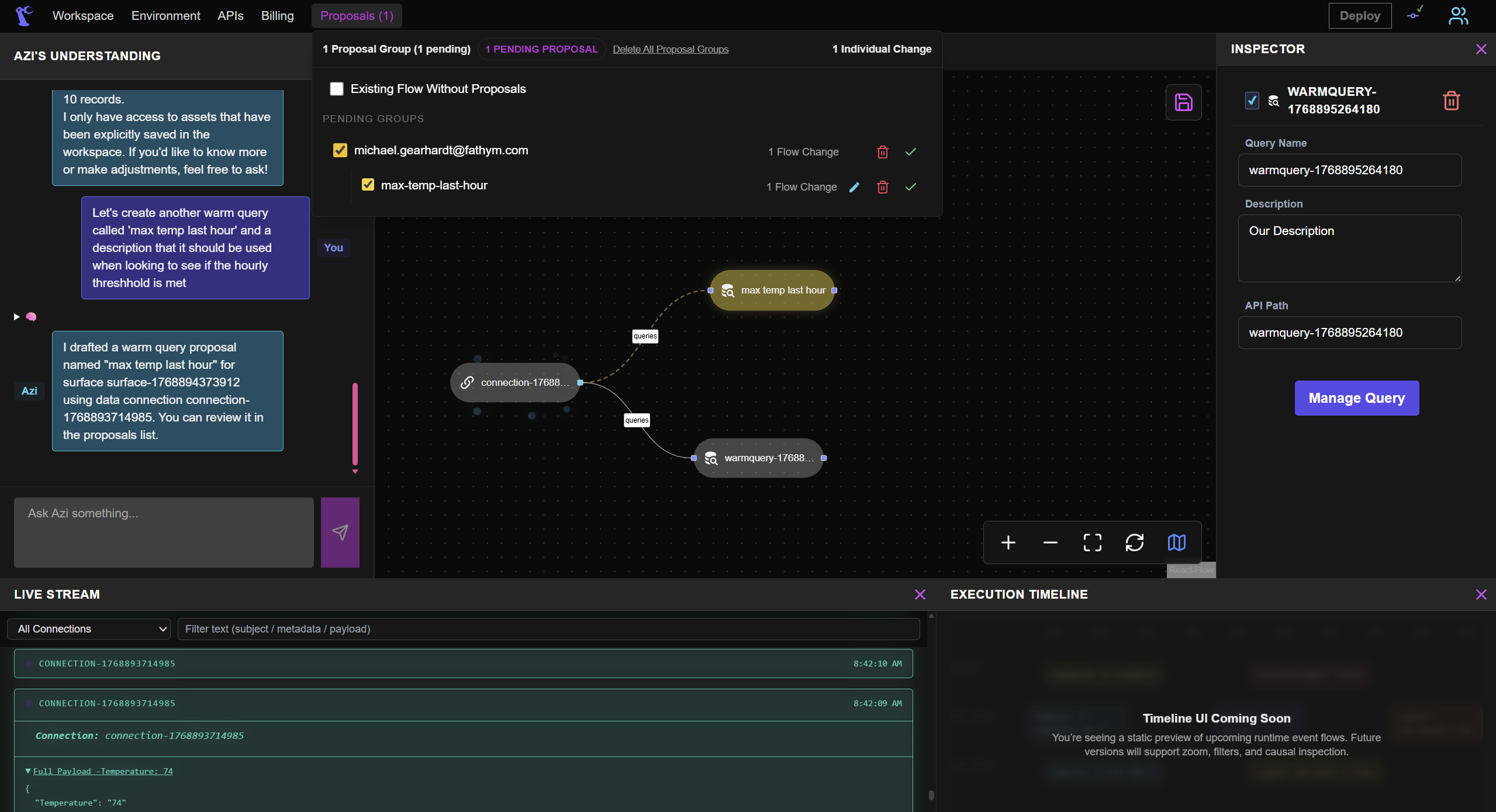
Option A: Ask Azi to Create and Build
The recommended approach - one conversation creates and populates your query:
-
Make sure you're inside your Surface (BrewMonitor)
-
Open the Azi chat panel on the left
-
Type a complete request:
"Create a warm query called temperature-avg that shows average temperature over the last hour"
-
Azi proposes both the query container AND the KQL:
- Review the proposal, then click Approve
Option B: Create Manually, Then Build with Azi
If you prefer step-by-step control:
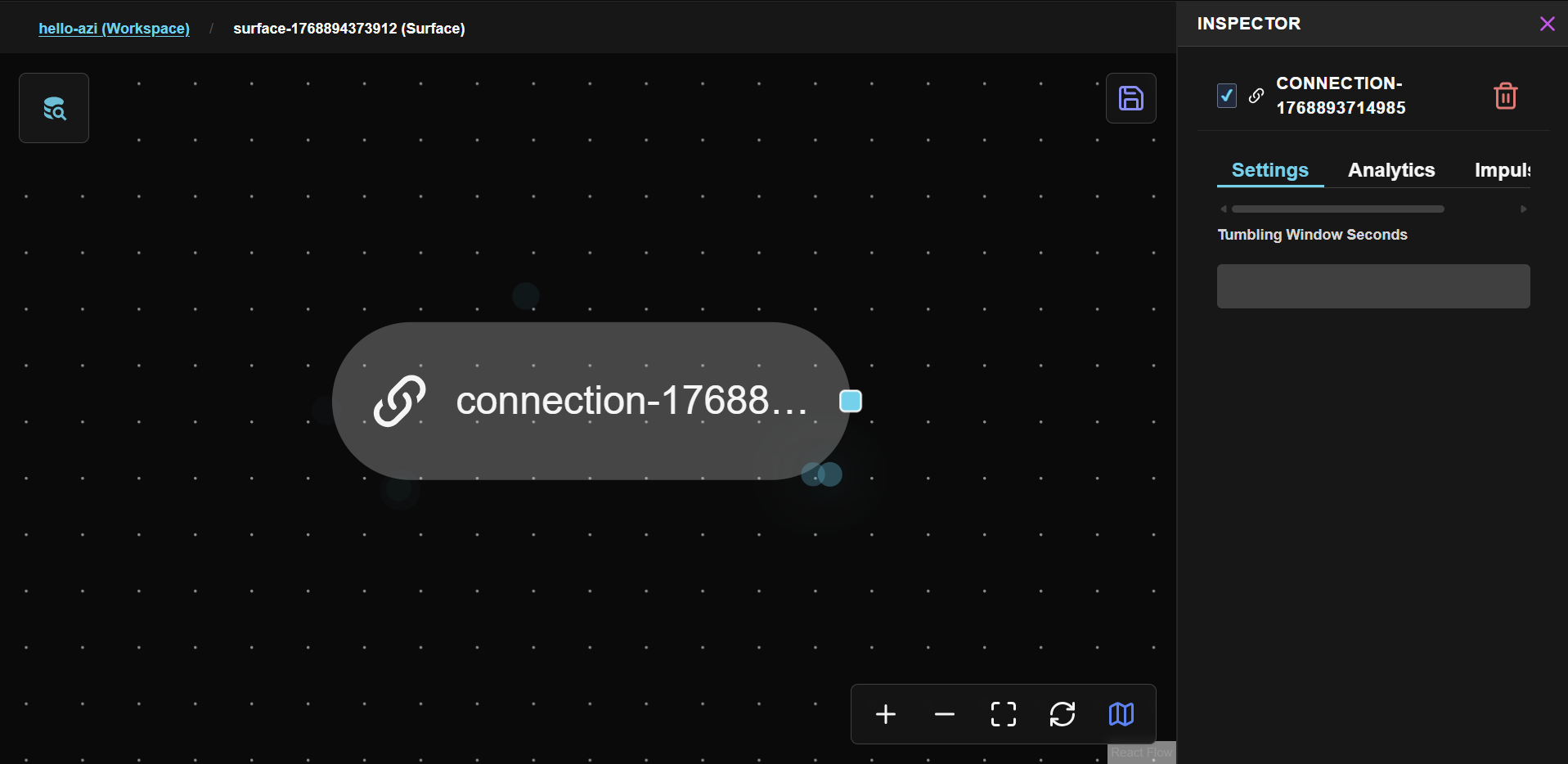
Step 1: Create the Query Container
- Inside the Surface, find Warm Query in the Node Bank
- Drag it onto the canvas
- Name it (e.g., "temperature-avg")
- Connect data to it from your connection
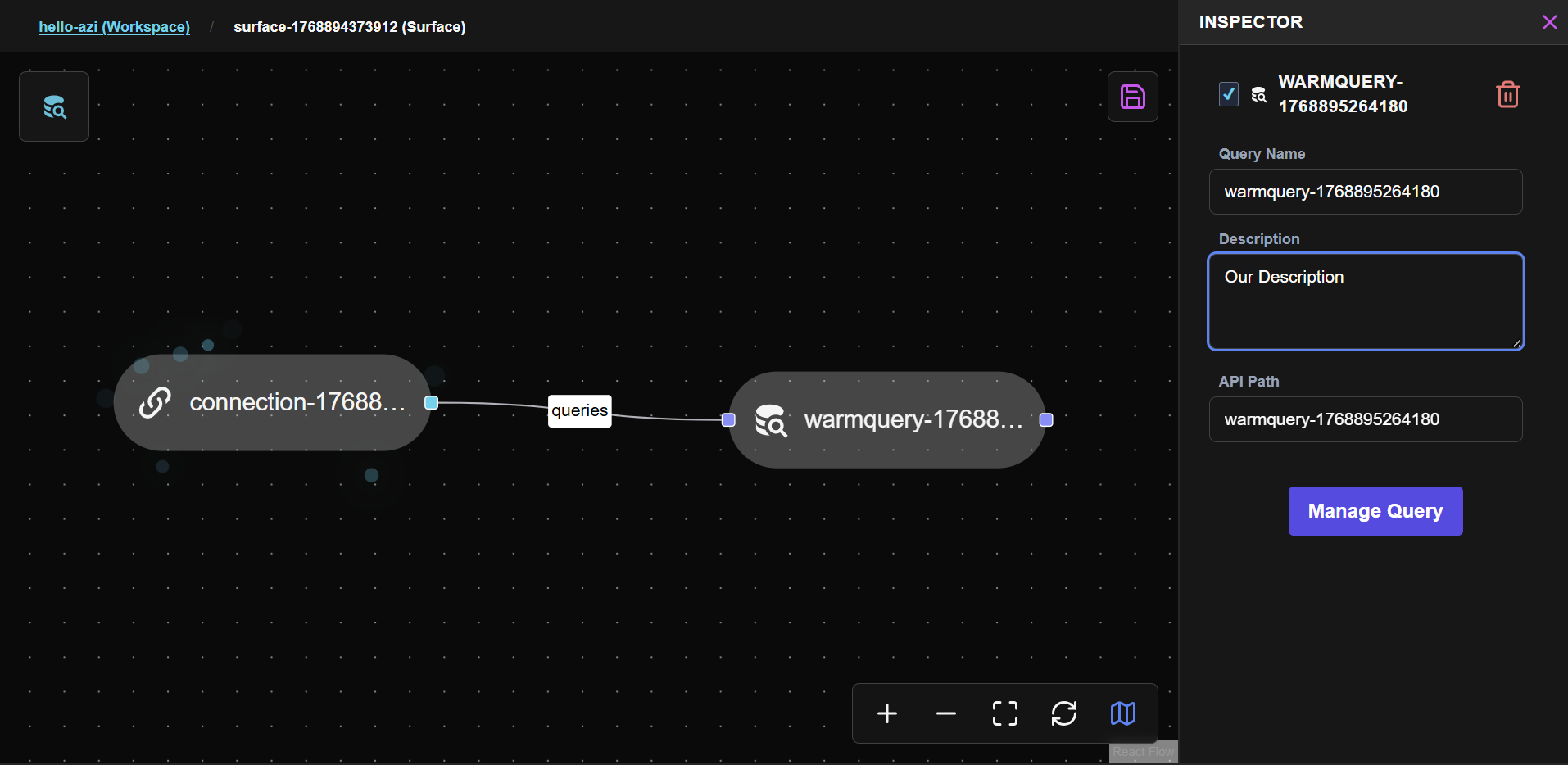
Step 2: Connect Data to the Query
- Draw an edge from your connection node to the warm query node
- The edge automatically labels as "queries" - this shows the data relationship
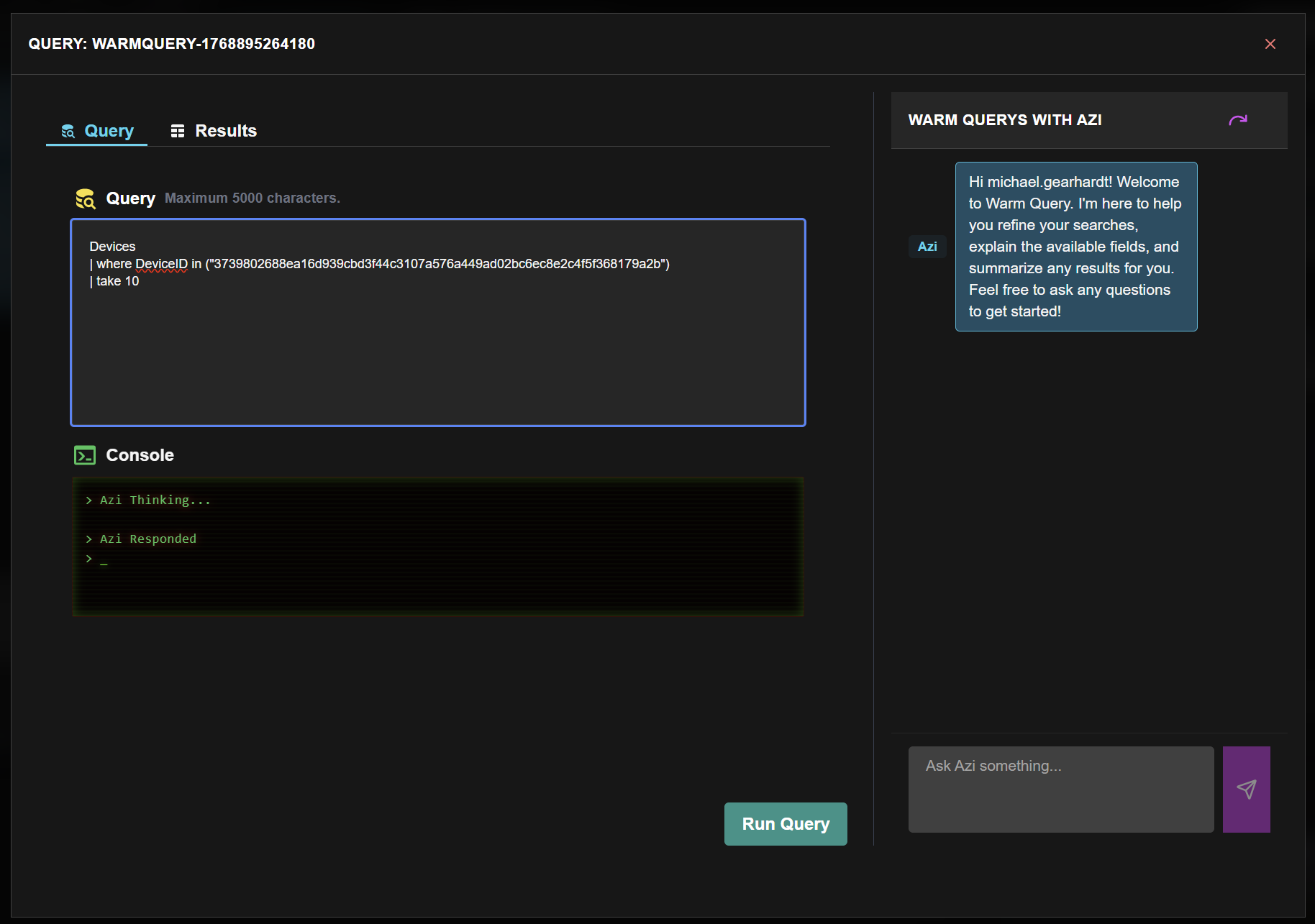
Step 3: Open the Query Manager
- Click on the Warm Query node
- In the Inspector, click to enter the Query Manager
- This opens a modal with the query editor and Azi panel
Step 4: Ask Azi to Build the Query
In the Query Manager Azi panel, type:
"Show me the average temperature over the last hour"
Azi proposes the KQL, you review and approve.
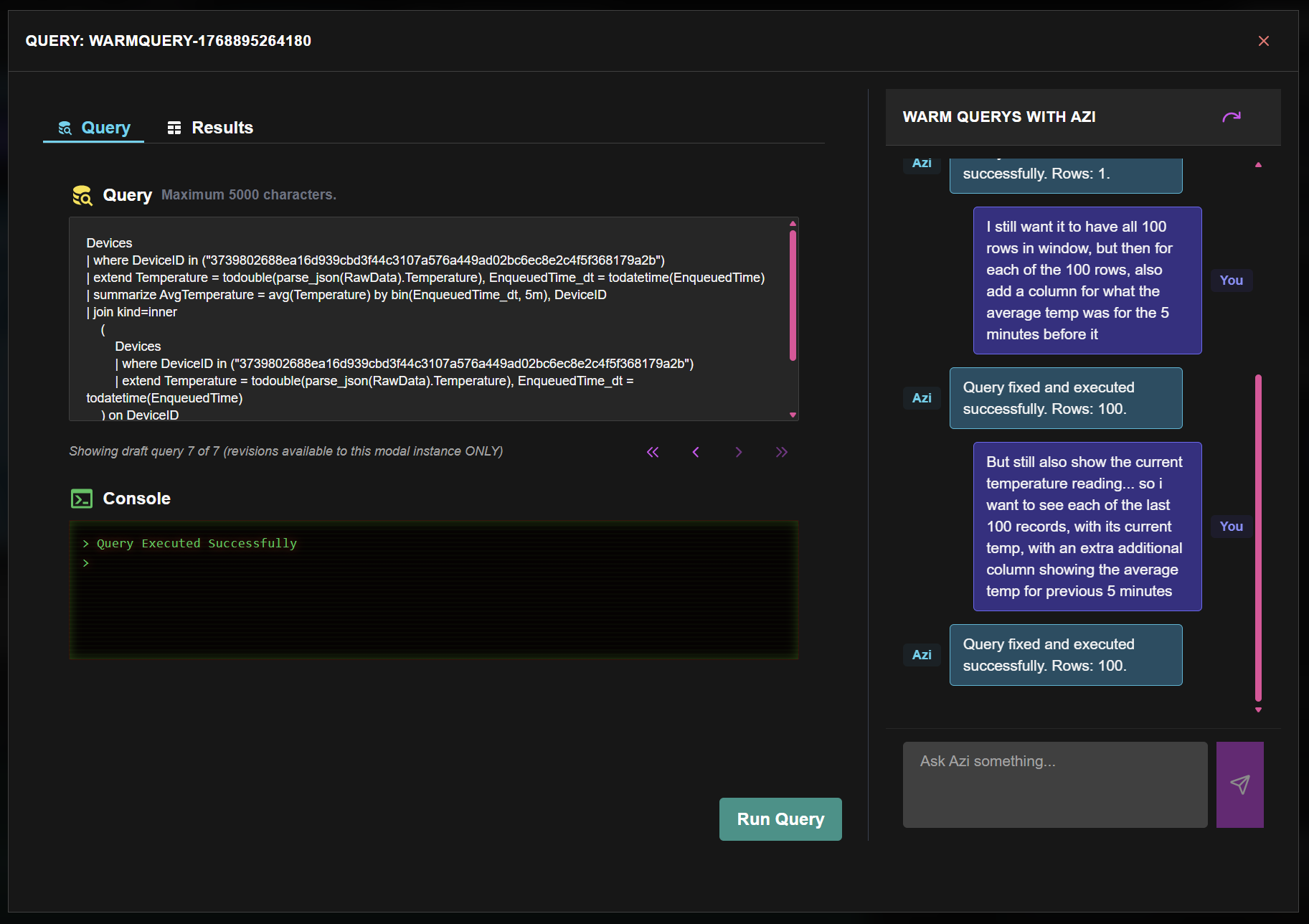
Review the Proposal
Before approving, you can:
- Read the KQL - Understand exactly what will run
- See the reasoning - Azi explains why she chose this approach
- Test it - Click Run Query (coral button, bottom of editor) to preview results
- Edit - Modify the KQL directly if needed
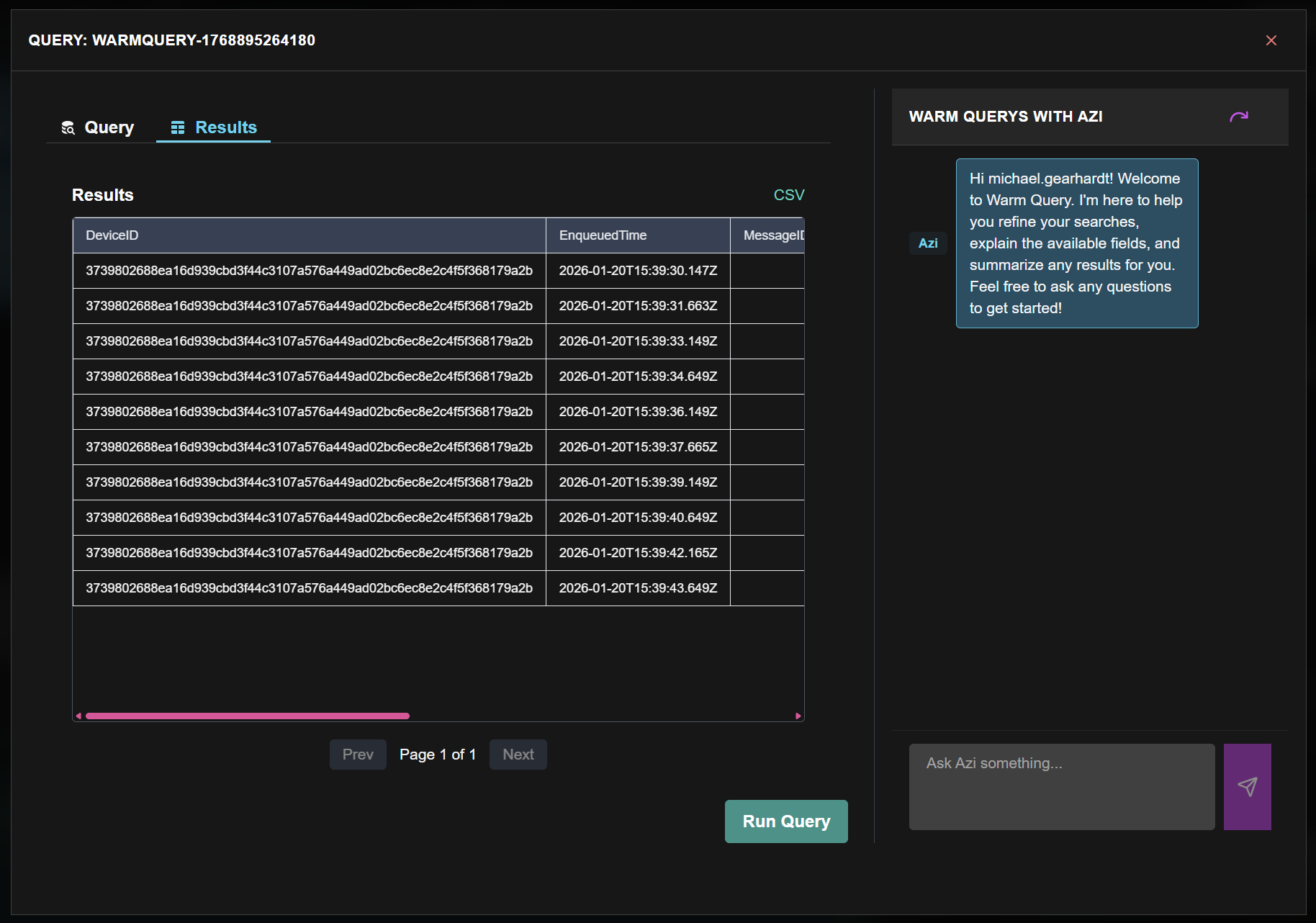
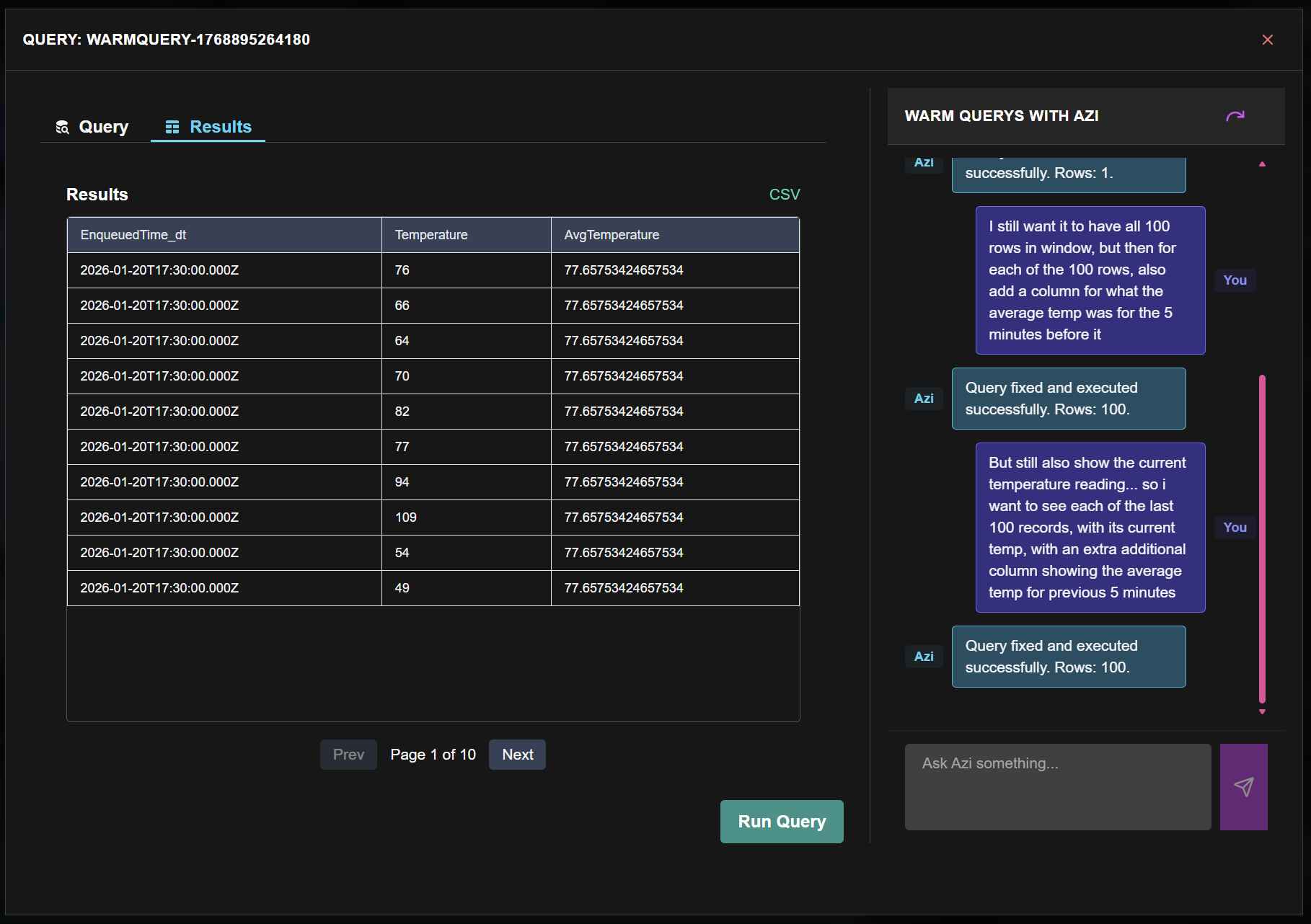
You don't need to know KQL - but we show it because AI and humans work together here. If you do know KQL, you can jump in to edit directly or guide Azi with more precision.
Approve, Reject, or Edit
Three choices:
| Action | Button | When to Use |
|---|---|---|
| Approve | ✓ checkmark | The query does what you want |
| Reject | 🗑️ trash | Start over with a different request |
| Edit | ✏️ pencil | Minor tweaks to the proposed KQL |
Click the checkmark (✓) to approve and save the query.
After approval, the query is saved to your warm query container. It becomes an API endpoint automatically.
The Audit Trail
Every interaction is logged:
| What | Recorded |
|---|---|
| Your request | "Create a warm query called temperature-avg..." |
| Azi's proposal | The KQL and reasoning |
| Your action | Approved by [your identity] |
| Timestamp | When it happened |
This is why governance matters. When something goes wrong, you know who approved what, when, and why.
Commit and Deploy
Save and deploy your query the same way you did in Step 2:
- Click the Save icon (upper-left)
- Click Deploy
Your query is now live and API-accessible.
Your data pipeline is already flowing from Step 2! This deploy makes your new query accessible via API.
Verify
Your query is complete when:
- KQL appears in the query editor
- Status shows "Ready" or "Query saved"
- Run Query returns expected results
- Changes are committed and deployed
What You Built
You just did in one conversation what enterprise teams spend months building:
Data → Surface → Warm Query → Governed API
And here's what makes this different: That API is now accessible to ANY MCP-native AI.
What's Next
Your governed query is live. In the next step, we'll access it via API - the endpoint is ready and waiting.
On this page
- FrontmatterVersion: 1 DocumentType: Guide Title: "4. Build Query with Azi" Summary: "Ask Azi for a warm query in plain language, review the KQL she proposes, and approve it. You get an API endpoint and an audit trail." Created: 2026-01-18
- Step 4: Build Query with Azi